Premanandji Maharaj Ai Photo Editing Prompt

Advertisement
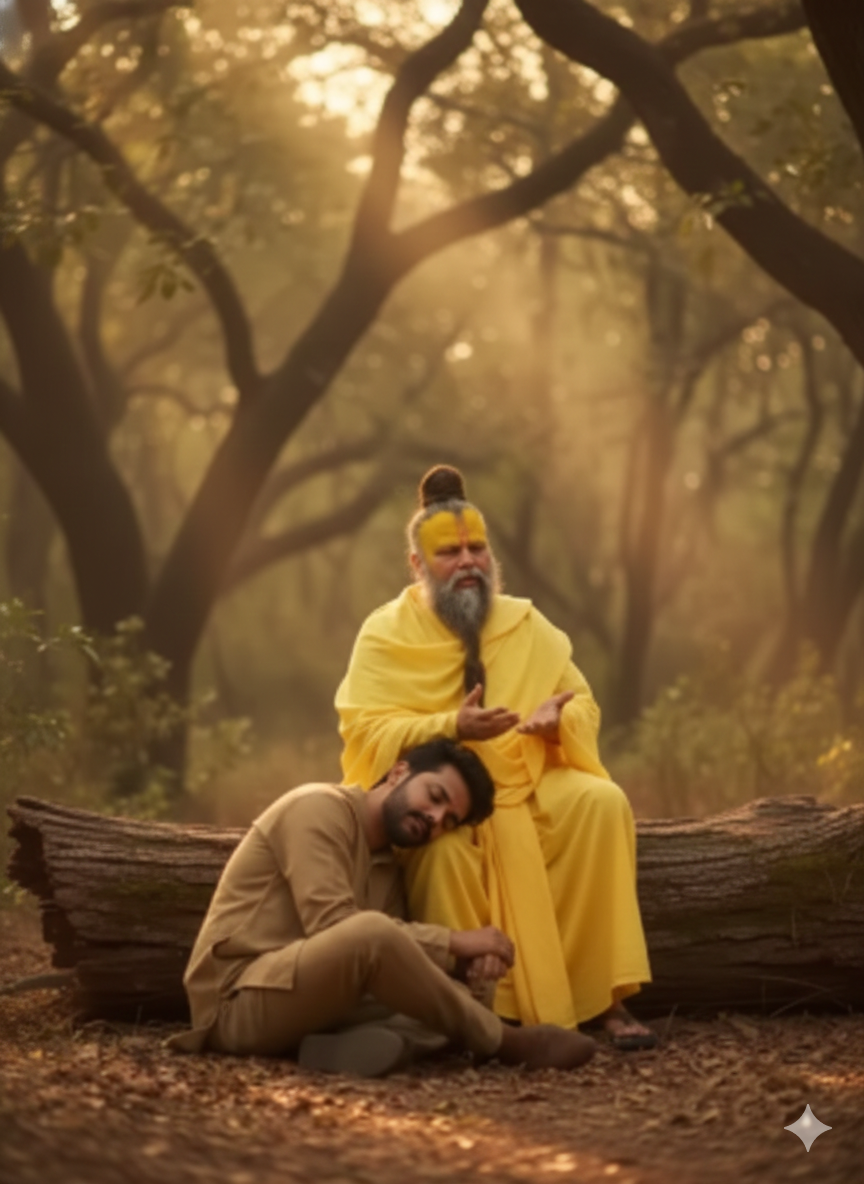
Premanandji Maharaj Ai Photo Editing Prompt  - AI Generated Image

AI Prompt Used

Create a cinematic, emotional frame featuring the two attached persons together. The setting is a tranquil, natural forest environment at dusk, with ancient trees and soft golden evening light filtering through the foliage. Both subjects are seated by a large, old tree trunk: the elder person sits gracefully upright on the log, appearing calm and wise as they gently speak and share wisdom, The younger person is seated on the ground and taking headrest on the elders lap.
Click or tap to copy
Advertisement

Discover Superior Results With The Help Following Ai Option

Stable Diffusion provides open-source flexibility with extensive customization options and local generation. Whether you want professional-grade photography, realistic portraits, or cinematic scenes, Stable Diffusion's innovative prompts enable you to control lighting, composition, camera settings, and mood with AI-powered precision. This curated collection of prompts is tailored for photographers, content creators, and visual storytellers who want more than just basic AI generation; it's for those eager to enhance photographic skills, create professional portfolios, and produce stunning visual content using Stable Diffusion's advanced capabilities. Every prompt incorporates current visual trends including premanandji, maharaj, photo, blending professional photography principles with AI-enhanced creativity. Stable Diffusion's open-source flexibility allows for customized results with unique styles and specific artistic control.

AI Platform Comparison

AI Platform Comparison

Different AI image generators excel at different tasks. Here's how the top platforms compare for photography generation:

Platform Best For Price Complexity Quality
Dalle Realistic images, detailed scenes, text integration Credits system Low Excellent
Adobe-firefly Commercial work, Adobe integration, ethical generation Adobe subscription Medium Excellent
Stable-diffusion Recommended Custom models, local generation, advanced control Free/Paid High Good to Excellent
Clipdrop Real-world integration, practical tools, mobile use Free/Paid Low Good
Fotor Photo editing with AI, templates, easy workflow Free/Paid Low Good

Tips for choosing:

  • For beginners: Try Craiyon, BlueWillow, or Bing Image Creator
  • For professionals: Consider Leonardo AI, Adobe Firefly, or Runway ML
  • For custom work: Stable Diffusion offers the most control
  • For mobile: Wombo Dream and StarryAI have excellent apps

Top AI Tools for This Style

DALL-E 3

Excellent for realistic images, complex scenes, and text integration

realisticphotographydetailed

Adobe Firefly

Seamless Creative Cloud integration for professional designers

commercialdesignprofessional

Stable Diffusion

Open-source flexibility with extensive customization and local generation

customtechnicalopen-source

ClipDrop

Real-world integration and practical AI image tools

practicalmobilereal-world

Fotor AI

AI image generation combined with photo editing tools

editingtemplateseasy

GetImg.ai

Multiple AI models with inpainting and custom training

versatileinpaintingcustom

Model-Specific Optimization Tips

Model-Specific Optimization

Midjourney
  • Use --ar 16:9 for widescreen, --ar 9:16 for mobile
  • --style raw for less opinionated, --style expressive for artistic
  • --chaos 0-100 controls variation (higher = more diverse)
  • --stylize 100-1000 adjusts artistic interpretation
Stable Diffusion
  • CFG Scale: 7-12 (balance between creativity and prompt adherence)
  • Sampling Steps: 20-50 (higher = more detailed but slower)
  • Negative prompts: Essential for removing unwanted elements
  • Use (keyword:1.3) for emphasis, [keyword] for de-emphasis
Google Gemini
  • Use natural, conversational language
  • Include context and background information
  • Ask for multiple variations in one request
  • Use follow-up questions for refinements
Adobe Firefly
  • Specify commercial-safe content requirements
  • Use Adobe Stock references for consistency
  • Integrate with Creative Cloud workflows
  • Use style presets for quick professional results

How To Edit Your Photo Using This Prompt

1
Access the Platform: Use web interfaces like DreamStudio, Automatic1111 WebUI, or install locally with Stable Diffusion WebUI.
2
Prepare Your Input: Upload your photo on respective AI . Ensure you have specific lighting, composition, and style requirements in mind.
3
Use Your Prompt: Use prompt: "Create a cinematic, emotional frame featuring the two attached persons together. The setting is a tr". Add negative prompts and adjust CFG scale, steps for control.
4
Customize Details: Use negative prompts to exclude elements, adjust CFG scale (7-12), steps (20-50), and samplers (Euler, DPM).
5
Generate and Refine: Start the generation process and monitor progress through the interface. You can interrupt and restart with different parameters.
6
Finalize and Export: Save your generated image and consider post-processing if needed. The open-source nature allows for extensive customization and editing.

Expert Tips for Best Results

  • Use weighted prompts: '(keyword:1.3)' to emphasize elements
  • Experiment with different samplers: Euler a, DPM++ 2M, DDIM
  • Adjust CFG scale (Classifier Free Guidance) between 7-12 for optimal results
  • Use negative prompts extensively to exclude unwanted elements
  • Try different models (Realistic Vision, DreamShaper, etc.) for different styles
  • Use LoRAs and textual inversions for specific styles or characters
  • Experiment with high-res fix and upscalers for better quality

Usage Tips

  • Specify camera types and lenses for different photographic effects
  • Use lighting terms like 'golden hour' or 'studio lighting'
  • Experiment with different film types and processing styles
  • Add compositional rules like 'rule of thirds' explicitly
  • Include depth of field requirements for focus control

Optimization Tips

  • Use specific, descriptive language in your prompts for better AI understanding
  • Include relevant keywords like 'premanandji', 'maharaj' for targeted results
  • Experiment with different parameter combinations to optimize outputs
  • Save successful prompt variations for future reference and refinement
  • Stay updated with the latest AI model capabilities and limitations
Advertisement

You Might Like:

Comments

Add a Comment

Max 1000 characters. Your comment will be publicly visible.
Note: Your email will not be published. It's only used to display your Gravatar if you have one.

No comments yet. Be the first to share your thoughts!

Quick Unique Best Match
Loading Tools Prompt...