
Prompt Seen Trending Girl
AI Prompt Used
About This AI Prompt
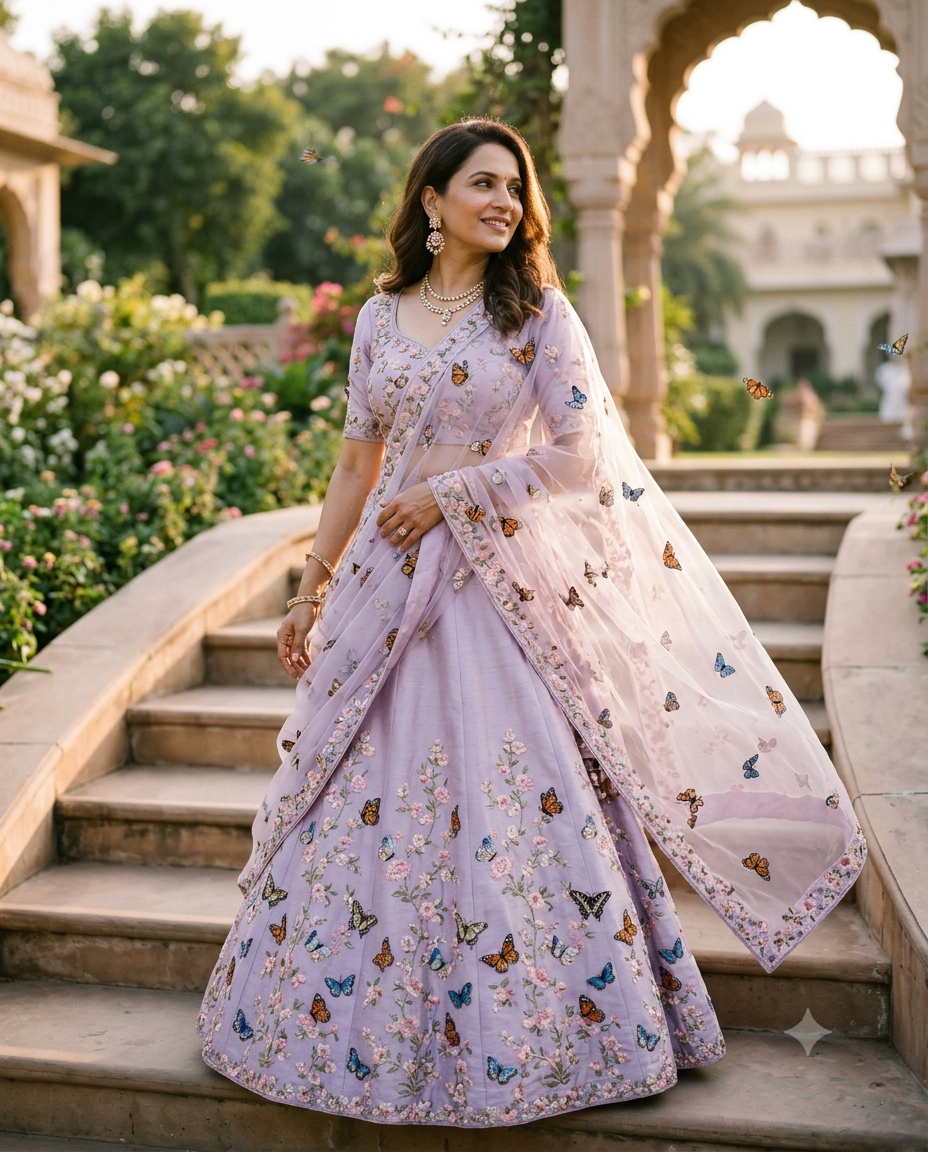
This Prompt Seen soft girl butterfly portrait prompt is designed to transform an uploaded adult woman photo into a dreamy, pastel‑toned portrait while preserving her natural facial features. The AI places her in a soft flower garden with realistic butterflies fluttering near her hair and shoulder, wearing a light embroidered outfit. The result feels airy, romantic, and professionally photographed, with a shallow depth of field, crisp eyes, and a natural smile. The 4:5 vertical framing makes it perfect for Instagram and Pinterest. The prompt’s key strengths: • Face‑preserving transformation (keeps the subject recognizable) • Soft pastel colour palette with an airy morning glow • Realistic butterflies (2–3) positioned naturally near hair and shoulder • Light embroidered outfit for an ethereal, feminine look • 4:5 vertical framing ideal for social media • Strict negative prompts: no fantasy wings, text, logos, watermarks, or distorted insects Ideal for portrait photographers, content creators, and anyone wanting to create viral‑worthy butterfly portrait edits. Works best with AI image‑to‑image platforms that support face consistency, such as Midjourney V6 (with --cref or --iw), Stable Diffusion XL (with ControlNet + IP‑Adapter), and Adobe Firefly (Generative Fill).
AI Platform Comparison (32+ Models)
AI Platform Comparison for Soft Girl Butterfly Portraits
Compare the best AI image platforms for transforming an uploaded photo into a soft, pastel butterfly portrait while keeping the face recognizable.
| Platform | Best For | Pricing | Category | Key Strength |
|---|---|---|---|---|
| Midjourney V6 Recommended | Face‑preserving image‑to‑image transformations | $10/mo | professional | --iw for image weight & --cref for face consistency |
| Stable Diffusion XL | Precise control with ControlNet and IP‑Adapter | Free/Paid | open-source | Best for exact pose and face preservation |
| Adobe Firefly | Commercial‑safe Generative Fill | Subscription | commercial | Licensed for client work & brand campaigns |
| Leonardo Creative | Image Guidance for face‑consistent edits | Token system | professional | Element weights for emphasising butterflies |
| Google Imagen 3 | Photorealistic skin texture & natural lighting | Free/Paid | professional | Superior realism for faces and butterflies |
| DALL‑E 3 | Text‑to‑image only (no direct image upload) | Credits | professional | Great for text‑based prompts, not for face preservation |
Quick recommendations:
- For face‑preserving edits: Midjourney V6 with
--iw 1.5and--cref - For precise control: Stable Diffusion XL with ControlNet + IP‑Adapter
- For commercial projects: Adobe Firefly (legal protection)
- For free generation: Stable Diffusion XL via Hugging Face
Top AI Image Generation Tools
Midjourney V6
Face‑preserving image‑to‑image with --iw and --cref
Stable Diffusion XL
ControlNet + IP-Adapter for exact pose and face
Adobe Firefly
Commercial‑safe Generative Fill
Leonardo Creative
Image Guidance for face‑consistent edits
Google Imagen 3
Photorealistic skin texture and soft lighting
Model-Specific Optimization Tips
Model-Specific Optimization
Midjourney V6
- Use the uploaded photo as an image prompt: paste the image URL, then add
--iw 1.5to keep the face strong. - Add
--cref [face URL] --cw 100for extra facial consistency. - Use
--ar 4:5 --style raw --v 6for vertical framing and a natural look. - Negative prompt:
--no wings, fantasy, text, logo, watermark, distorted insects.
Stable Diffusion XL
- Use IP‑Adapter with the uploaded photo to preserve facial features.
- Use ControlNet OpenPose if you need a specific pose; otherwise rely on the original photo.
- CFG Scale: 7‑9, Steps: 30‑40, Sampler: DPM++ 2M Karras.
- Negative prompt:
wings, fantasy, text, logo, watermark, distorted insects.
Leonardo Creative
- Use Image Guidance with the uploaded photo as the reference.
- Set Guidance Strength around 0.6–0.8 to keep the face while allowing changes.
- Add negative prompts:
wings, fantasy, text, logo, watermark, distorted insects.
Adobe Firefly
- Use Generative Fill to replace the background and add butterflies while keeping the subject.
- Use the “Photo” style for realistic results.
- Ensure commercial‑safe settings are on for client work.
How To Use This Prompt
Expert Tips for Best Results
- Use a high‑resolution, well‑lit portrait photo for best face preservation.
- For Midjourney, always use --iw 1.5 and --cref to keep the face recognizable.
- If the butterflies look distorted, add --no distorted insects to the prompt.
- Use "pastel flower garden" and "airy morning glow" to get the soft, dreamy look.
- Specify "light embroidered outfit" so the AI changes the clothing appropriately.
- Keep the framing at 4:5 vertical for ideal social media posting.
- Generate multiple versions and composite the best face and butterfly elements.
- For Stable Diffusion, use IP‑Adapter with a weight of 0.7–0.8 for good face retention.
- Add "natural smile, crisp eyes" to ensure the expression stays pleasant.
- Avoid over‑processing: keep the skin texture natural.
Usage Tips
- Keep prompts detailed — this prompt’s charm comes from specific styling and lighting.
- Adjust aspect ratio: 4:5 for Instagram feed, 9:16 for Stories/Reels.
- Use style references for consistent colour grading.
- Try varying stylize: lower for realism, higher for artistic flair.
- Combine with colour grading prompts for unique pastel looks.
- Specify camera types: "85mm lens, f/1.8" for natural portrait feel.
- Include depth of field: "shallow DOF, creamy bokeh" for professional look.
- Test the prompt across Midjourney, Stable Diffusion, and Adobe Firefly.
- Keep a log of successful parameter combinations and seeds.
- Iterate systematically: change one element at a time between generations.
Optimization Tips
- Use specific, descriptive language in prompts for better AI understanding.
- Include relevant keywords like "soft girl butterfly portrait", "pastel flower garden", "face preservation".
- Experiment with parameter combinations to optimize outputs for different platforms.
- Save successful prompt variations for future reference and refinement.
- Stay updated with latest AI model capabilities (Midjourney V7, DALL‑E 4, SD 3.5).
- Add alt text to generated images for accessibility and SEO.
- Use structured data (ImageObject schema) on prompt pages.
- Include canonical URLs for prompt pages.
- Cross-link related prompts for internal linking.
- Update regularly to maintain freshness signals.
Comments
Add a Comment
No comments yet. Be the first to share your thoughts!